 /SLASHPLAY
Connect a Discord server to your team
Add the SLASHPLAY bot to your Discord server, pick where it posts and which role can start servers, all in three steps from the team's Discord tab.
Read the transcript
This audio was created with Boson AI's Higgs Audio: boson.ai/higgs-audio
This guide connects your team to a Discord server you manage. When you’re done, the SLASHPLAY bot is in your Discord, it announces your team’s servers when they go live, and the members you choose can start and stop them with /server without a SLASHPLAY account. It takes about two minutes, and nothing is saved until the last click.
Before you start
- The SETTINGS permission on the team. The owner has it. ADMIN does not, unless it’s ticked for them. See Roles and permissions.
- Manage Server in the Discord server you want to connect. If you own the Discord server, you have it. SLASHPLAY checks this with Discord itself.
- A channel for announcements, like
#generalor#servers, where the bot will be allowed to post.
Steps
Step 1: Open the team’s Discord tab
Open the Team tab, enter your team and click Discord.
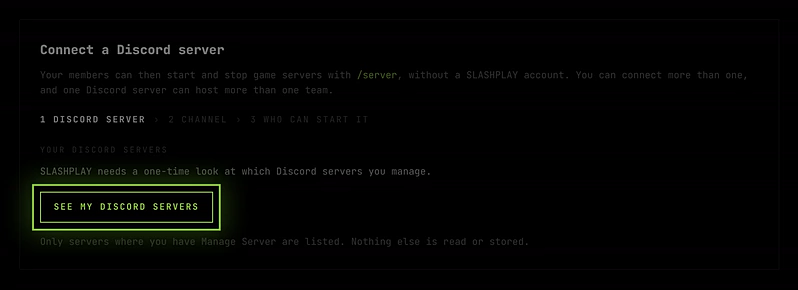
- If the team isn’t connected to anything yet, you see Connect a Discord server with the first step already open.
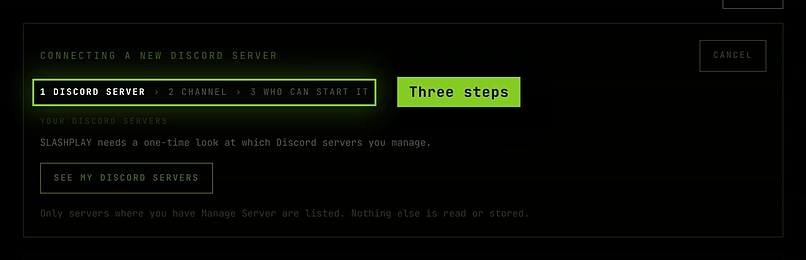
- If it already has a connection, click Connect another above the list. A box titled Connect another Discord server opens, with a Cancel button.
The box tracks three steps: 1 Discord server › 2 Channel › 3 Who starts it.
Step 2: Let SLASHPLAY see your Discord servers
The first time, the box says SLASHPLAY needs a one-time look at which Discord servers you manage.
- Click See my Discord servers.
- Discord asks you to approve. Approve it, and you’re sent back to the same step.
Only servers where you have Manage Server are listed. Nothing else is read or stored. Next to Your Discord servers you’ll see when this was checked, like Verified 3 min ago, and a Re-check with Discord link to refresh the list.
Each Discord server in the list shows its member count, other teams already using it (Also used by …), and whether the bot is in it yet.
Step 3: Add the bot
If your Discord server says Bot not added yet:
- Click Add bot. Discord’s invite page opens in a new tab with your server already chosen.
- Check the permissions and click Authorize.
- Come back to the SLASHPLAY tab. The row reads Waiting for the bot… and switches to Connect by itself once the bot arrives. If it doesn’t within a few seconds, click Check now.
The bot asks for four permissions: View Channel, Send Messages, Embed Links and Read Message History, plus the right to add its slash commands. It never needs admin rights.
When the bot joins, it posts a short Welcome to SLASHPLAY message in your server’s system channel (or the first channel it can post in), listing /play, /link account, /server, /balance and /whoami, with an Open dashboard button.
Step 4: Choose your Discord server
Click Connect next to the Discord server.
Step 5: Pick the announcement channel
The box asks Where should SLASHPLAY post in your server? This is where the “server is up” card goes whenever one of the team’s servers goes live.
- Click a channel.
- Under Ping a role, leave Nobody, or pick a role to ping with every announcement, like
@players. - Click Next.
You can add more channels, and a separate event feed channel, later.
Step 6: Choose who can start servers
The box asks Who can start and stop servers from your server?
- Pick the role your players have. That role gets the PLAYER level: its members can see the team’s servers and start, stop and save them with
/server, without a SLASHPLAY account. - Pick @everyone to let everyone in the Discord server do that.
- Leave Nobody yet to connect without giving anyone access. You can add roles later.
Click Finish.
Step 7: Check the result
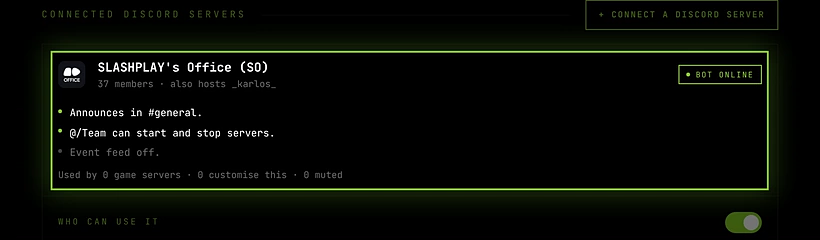
The box closes and a card for your Discord server appears, with a green note like Connected Klub Gaming. Its summary lines read something like:
- Announces in #general.
- @players can start and stop servers.
Try it: start one of the team’s servers and watch the announcement appear, or type /server list in your Discord.
What happens next
The card holds four sections you can change at any time, and every change saves the moment you make it:
- Who can use it: the switch that lets Discord members use
/server, and the access level of each role. See Who can use it. - Where it can be used: every channel, or only the ones you pick.
- Announcements: the channels that get the live card, each with its own ping, and a Test button.
- Event feed: an optional quiet log of joins, leaves and status changes. It starts switched off. See Announcements and event feed.
A connection covers every server on the team, including ones you deploy later. To treat one server differently, see Per-server Discord settings.
You can repeat these steps to connect more Discord servers to the same team, and other teams can connect to the same Discord server. Each team’s servers only show up to the roles that team allows.
Disconnect a Discord server
- Open the team’s Discord tab and expand the Discord server’s card.
- At the bottom, next to Connected by … on …, click Disconnect.
- Read the confirmation. It tells you how many role grants are deleted and how many game servers lose their Discord settings for that server. Click Yes, disconnect, or Keep.
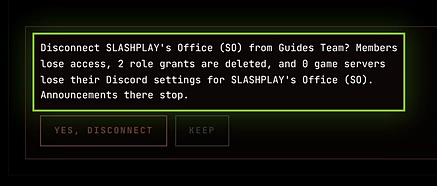
Disconnecting stops all announcements there, removes every role’s access, and deletes the per-server settings for that Discord server. It doesn’t remove the bot from your Discord server: do that from Discord if you want to.
Troubleshooting
The list says “Discord says you don’t have Manage Server in any Discord server.” Ask the Discord server’s owner to give you a role with Manage Server, then click Re-check with Discord. Or ask them to connect it instead.
Connecting fails with “You need Manage Server in” the Discord server. Your 15-minute check ran out or your Discord role changed. Click Confirm with Discord and try again.
Step 5 says “SLASHPLAY can’t post in any channel there.” The bot can’t see or post in any channel. In Discord, give the bot’s role View Channel and Send Messages in at least one channel, then click Check now.
The card says Bot missing. Someone removed the bot from the Discord server. Click Add bot back. Your settings are kept and everything works again once it’s back.
I don’t see Connect another. You don’t have the SETTINGS permission on this team. The tab says Only team admins can change Discord settings. You can look, though.