 /SLASHPLAY
Start a Terraria server
Deploy a Terraria dedicated server on SLASHPLAY, join it by IP and port from Terraria's multiplayer menu, invite your friends and stop it when you're done.
This guide takes you from zero to a live Terraria world your friends can join, then shows you how to stop it so it stops costing anything. The one thing that trips people up is the address: Terraria asks for it in two parts, the address and then the port. The steps below show where each part goes.
Before you start
- A SLASHPLAY account. Sign in at slashplay.gg/dashboard with Discord or Steam. See Create your account.
- Nothing to pay for a first try. A Small Terraria server costs $0.03 an hour (3 tokens). New accounts get 6 starter tokens, and the start step offers them as Try it free: 2 hours on Small, no card. After that, buy tokens. See How tokens work.
- Terraria on PC, for you and everyone who joins.
Steps
-
Open Deploy. Sign in and click Deploy in the top bar. Click the Terraria card: it shows
from $0.03/hrand 2 hours free.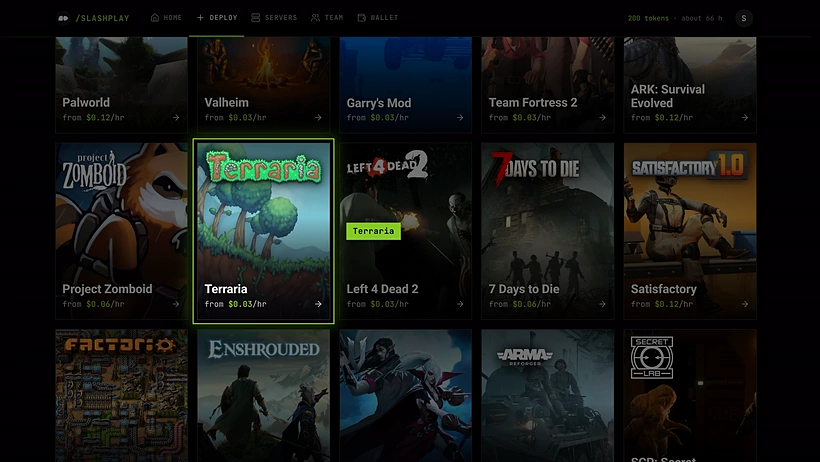
Deploy: every game is a card with its hourly price. Click the card to open the game's page. -
Keep Small. The game’s page asks How big should it be? and has Small (1 CPU, 2 GB, $0.03/hr) picked, marked Recommended for Terraria. Small is the size Terraria runs on. Terraria has one version, so there’s nothing else to choose. Click Next.
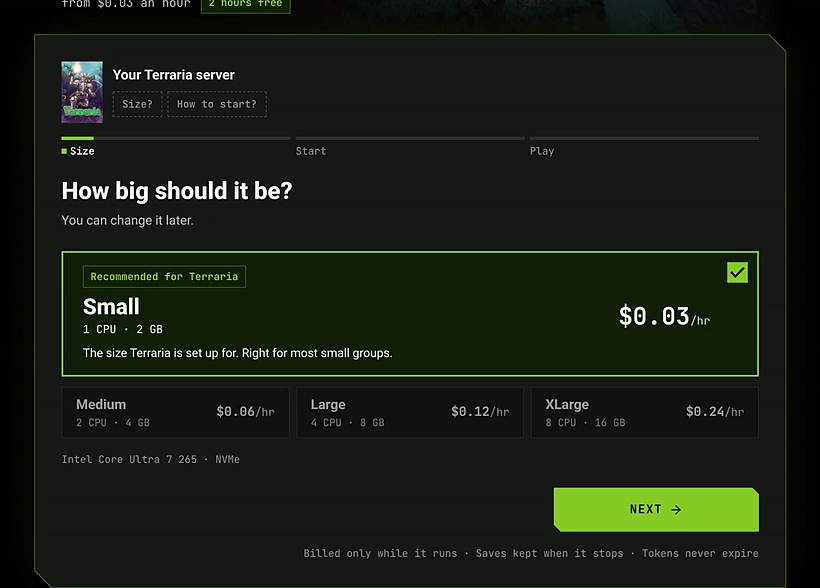
The size step: Small is recommended for Terraria, the bigger sizes are listed under it. -
Choose how to start. On a new account, Try it free is picked: 2 hours on Small, paid by your starter tokens. If your team holds more tokens, Use my balance is picked instead and shows how many hours they last. Top up and play buys tokens first. Above the cards, Region shows Germany: every server runs there today, and pressing it lets you vote for other regions. See Regions.
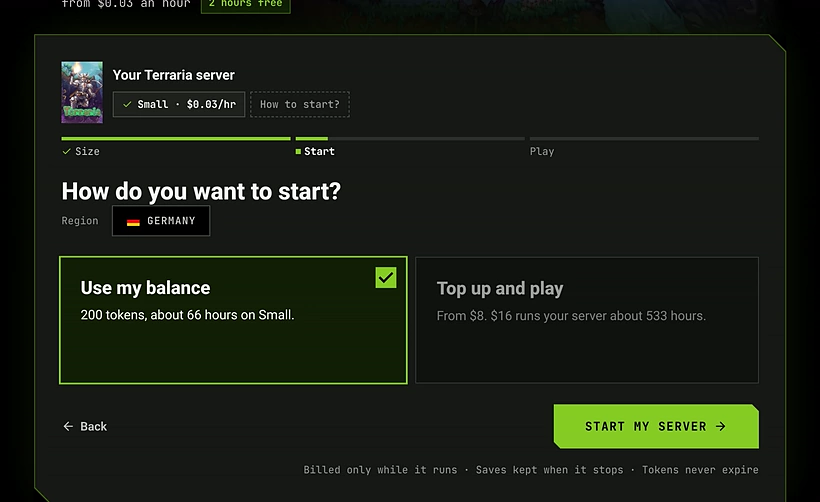
The start step: the Region chip, Use my balance picked, and Start my server. -
Start it. Click Start my free server (on your balance, Start my server). Your server’s page opens and shows Starting with a timer while it boots. On its first start it also generates your world.
-
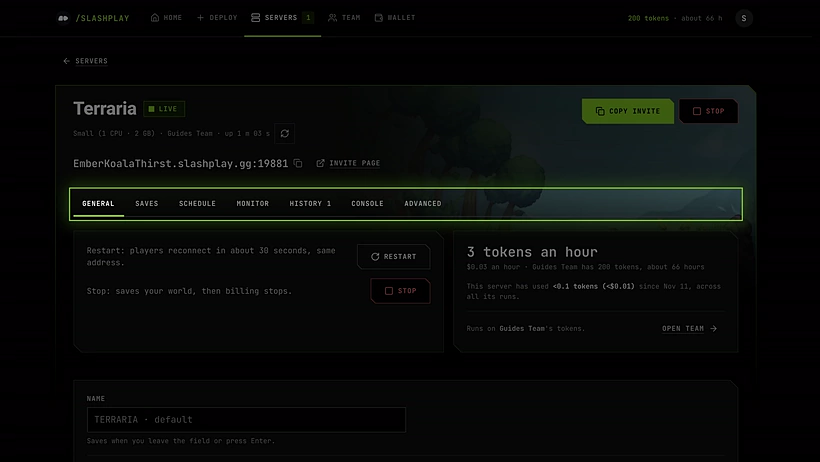
Copy the address. When the chip says Live, the address appears at the top of the page, for example
EpicBadgerThirst.slashplay.gg:17552. Click Copy invite to copy it.
Live: the address, with Invite page beside it, and Copy invite. -
Join in Terraria (next section).
-
Stop when you’re done. Click Stop at the top of the server page, or on the server’s card on the Servers tab. Next time, press Start on that card.

A stopped server on Servers: Start brings it back.
Join in Terraria
- Start Terraria and click Multiplayer, then Join via IP.
- Pick the character you want to play.
- Type the address without the port, for example
EpicBadgerThirst.slashplay.gg, and click Accept. - Type the port, the number after the colon (
17552in the example), and click Accept. - If you turned on a join password, Terraria asks for it next.
You arrive in the world called World. It’s the same world every time you start the server again.
Invite your friends
Click Invite page beside the address on the server page and send them that page’s URL. They don’t need a SLASHPLAY account. The invite page shows the server’s status and address with a Copy button, and under it Open: no password required to join (or the password, if you turned one on). There’s no launch button for Terraria: they join from the Terraria menu as above. See Connecting and inviting.
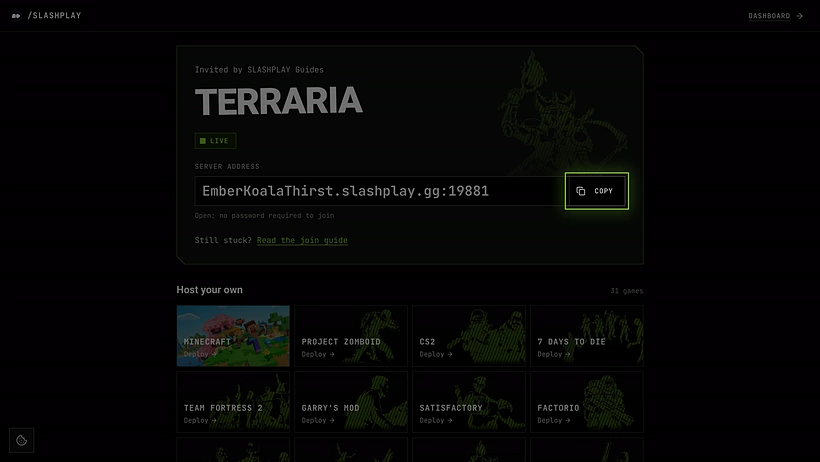
To keep strangers out, turn on the join password on the General tab of the server page and restart. See Join passwords.
What happens next
While the server is live, your team’s balance pays for it by the minute, 3 tokens an hour on Small. Stop saves the world, shuts the server down and stops the hourly cost. Start brings the same world back, but with a new address and invite link, so share the new ones.
Troubleshooting
The server has said Starting for several minutes. Slow boots are retried automatically. If it ends up Crashed, the boot isn’t charged: click Start the game again on the server page. See Crashes and debug mode and Troubleshooting.
Terraria can’t connect.
Check the server page says Live. Then check you typed the address and the port in their own boxes: the address without :port, then the port by itself. After a restart from stopped, the address changes, so copy it again.
Terraria says the password is wrong. Copy it again from the server page or the invite page. If you just changed it or turned it on, restart the server first: Terraria reads the password when it starts.
I can’t find the server in a list. Terraria has no public server list. Join with Join via IP as above.