 /SLASHPLAY
How to Set Up a Counter-Strike: Source Deathmatch Server on SLASHPLAY
Counter-Strike: Source doesn’t ship with a deathmatch mode. Communities run it with CSS:DM, the AlliedModders deathmatch plugin for SourceMod: instant respawns, weapon menus, spawn protection and bot quotas. On SLASHPLAY every Counter-Strike: Source server already has MetaMod:Source and SourceMod 1.13 installed, so you add CSS:DM from the dashboard and switch the server to deathmatch with a preset. There is nothing to download or upload.
The docs keep the full reference for every preset: Counter-Strike: Source mode presets.
Don’t have a Counter-Strike: Source server yet? Start with how to create a dedicated CSS server, then come back here to add deathmatch.
Before you start
- The server must be Live. Plugins and modes are only changed on a running server.
- You need the Control servers permission on the team. See Roles and permissions.
Step 1: Install the CSS:DM plugin
- Open your server’s page and click Game-specific, then Plugins.
- Find CSS:DM in the list. Its row shows the version and SourceMod 1.13 · Compatible.
- Click Install, then confirm with Install & restart. The server restarts to download, extract and enable the plugin, and connected players are kicked.
- Wait until the server shows Live again.
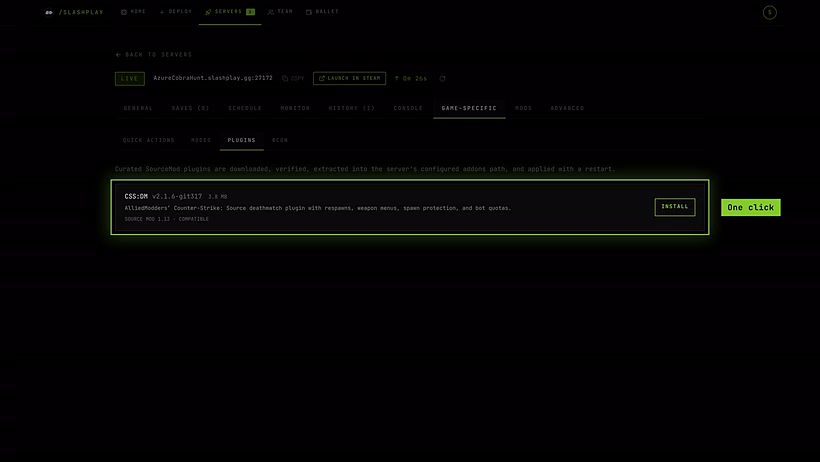
The plugin comes from its official source and is checked against a known fingerprint before it is installed. See Plugins and mods.
Step 2: Apply the Deathmatch mode
- Under Game-specific, open Modes.
- Under Mode preset, pick Deathmatch.
- Click Apply mode, then Apply mode again in the confirmation. Applying restarts the game, so bots and players may be affected.
- Active mode now reads Deathmatch, applied again every time the server starts.

The Deathmatch preset loads the CSS:DM plugins and sets:
| Setting | Value | Meaning |
|---|---|---|
cssdm_enabled | 1 | Deathmatch on. |
cssdm_respawn_wait | 0 | Respawn immediately. |
cssdm_spawn_method | preset | Spawn at CSS:DM’s spawn points spread over the map. |
cssdm_remove_drops | 1 | Clean up dropped weapons. |
cssdm_ffa_enabled | 0 | Team deathmatch, not free-for-all. |
mp_freezetime | 0 | No freeze at round start. |
mp_roundtime | 60 | Rounds as long as the game allows, so play runs continuously. |
mp_timelimit | 30 | Change map every 30 minutes. |
The mp_ settings are standard Counter-Strike: Source ones; look up what else they can do, and every other setting, in the CS:S console commands list.
Step 3: Check that it works
Open the Console tab and run:
sm plugins listYou should see five plugins starting with “CS:S DM”: Basics, Bot Quotas, Equipment, Preset Spawns and Spawn Protection.
cssdm_versionThis prints the CSS:DM version, 2.1.6.
Step 4: Tune it
- Free-for-all. Type
cssdm_ffa_enabled 1in the Console tab. The preset sets team deathmatch, so run it again after a restart. - Respawn delay.
cssdm_respawn_wait 1gives players a one-second pause before they respawn. - Bots. Under Game-specific → Quick actions, set a number in Bot count and click Set bot count, or use Add bot and Kick bots.
- Maps. Play on standard maps like
de_dust2,de_infernoorcs_office, which CSS:DM has spawn points for. Switch withchangelevel de_infernoin the console. - Plugin config. CSS:DM’s own settings live in
cstrike/cfg/cssdm/cssdm.cfg. Open it with Edit in the file manager (Advanced → Files), save, and click Restart on the General tab.
Leave the passwords to the dashboard. Don’t put
rcon_passwordorsv_passwordinserver.cfgorautoexec.cfg. A value there overrides the one SLASHPLAY sets:rcon_passwordbreaks the dashboard console, Quick actions and Modes, andsv_passwordoverrides the join password you set on the General tab. To change the RCON password, use Edit or Generate next to it, under Game-specific → RCON or on the General tab.
Step 5: Connect and play
- Share the server’s connect link from your SLASHPLAY dashboard, or type
connect <SERVER_IP>:<PORT>in the game console. - Join a team. A weapons menu pops up: pick your primary and secondary.
- When you die, you respawn somewhere across the map with a brief spawn-protection glow.
Troubleshooting
| Problem | Fix |
|---|---|
| Deathmatch applied, but nobody respawns | CSS:DM isn’t installed. Install it from Game-specific → Plugins, wait for the restart, then apply Deathmatch again. |
| The preset fails with an error about the server not being ready | Wait until the server shows Live and try again. |
| A CSS:DM build you uploaded yourself fails to load | It was built for a different SourceMod version. Uninstall it and install CSS:DM from Game-specific → Plugins instead. |
| Players spawn on top of each other | The map has no CSS:DM spawn points. Use a standard map, or set cssdm_spawn_method "none" in cssdm.cfg for a custom map. |
RCON says RCON auth failed: bad password | A rcon_password line in server.cfg or autoexec.cfg is overriding SLASHPLAY’s password. Remove every rcon_password line from both files, save, and click Restart. Copy the current password from Game-specific → RCON. |
Need a server to run this on first? See how to create a dedicated CSS server on SLASHPLAY.